Learning Objectives
After completing this lesson, you'll be able to:
- Demonstrate how to share multiple components with project files.
- Import a project to FME Flow.
- Identify and understand how project dependencies work in FME Flow.
In this lesson, you will:
- Optional: Watch a demonstration video (if you have not attended the live training).
- Scroll down to read the activity instructions below and follow the steps in your lab.
- Complete the quiz at the end of this lesson.
- Click 'Next' to mark the lesson complete.
Learning Objectives
After completing this lesson, you'll be able to:
- Demonstrate how to share multiple components with project files.
- Import a project to FME Flow.
- Identify and understand how project dependencies work in FME Flow.
In this lesson, you will:
- Optional: Watch a demonstration video (if you have not attended the live training).
- Scroll down to read the activity instructions below and follow the steps in your lab.
- Complete the quiz at the end of this lesson.
- Click 'Next' to mark the lesson complete.
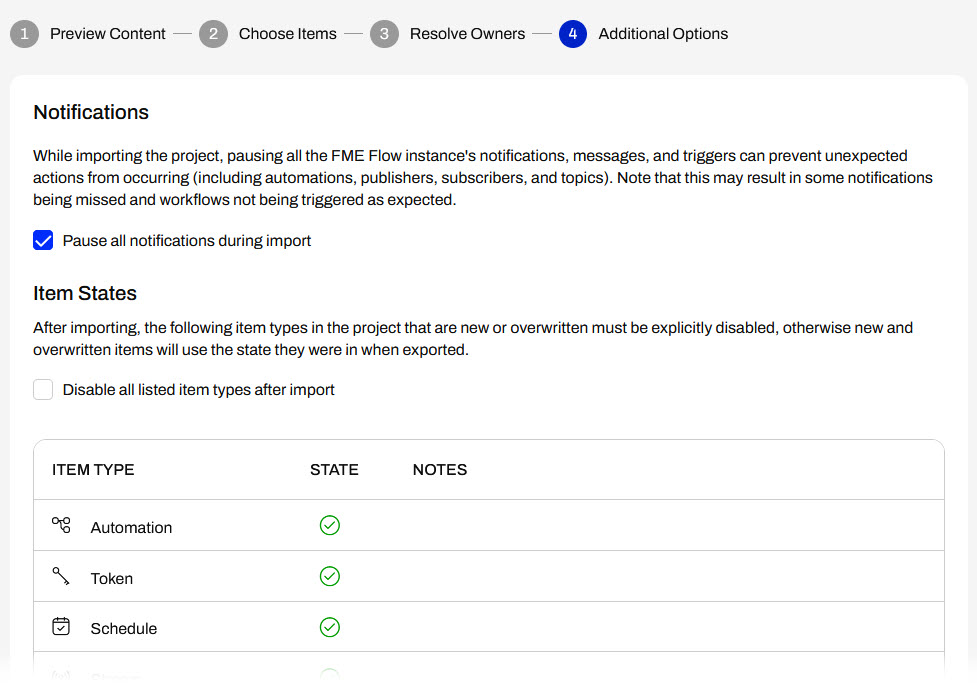
The last step is Additional Options, where you choose whether to turn off notifications during the import process and whether to disable items you do not want to run or use immediately after import completion. For example, an Automation may trigger immediately and begin running workspaces if you choose to leave the items as enabled.
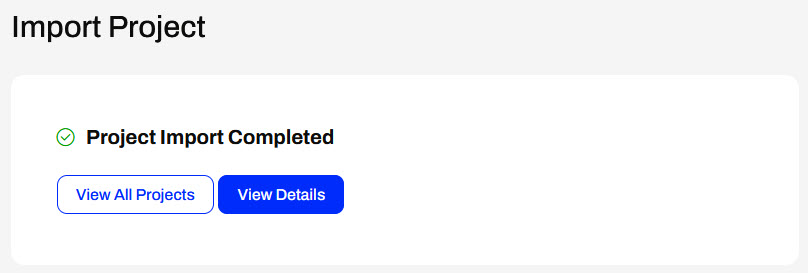
Whether you select Import or Quick Import, once you click Import Project, FME Flow imports the items and displays the import status.
You should always test your workflows after migrating them between FME Flow instances. After a successful import, you will see the newly added project items among the existing content on your FME Flow.

To import a project that you exported with sensitive data, you must ensure the encryption keys match between the FME Flow instances; otherwise, the project import will fail. For more information on System Encryption and Projects, see our documentation.
Exercise


Sven has been busy creating workflows ready for deployment to the city's production FME Flow. He has developed and exported a project from Planning's development FME Flow and sent it to Frank to import onto the production FME Flow instance.
For this exercise, follow the steps below to import Sven's project to FME Flow.
1) Import Project
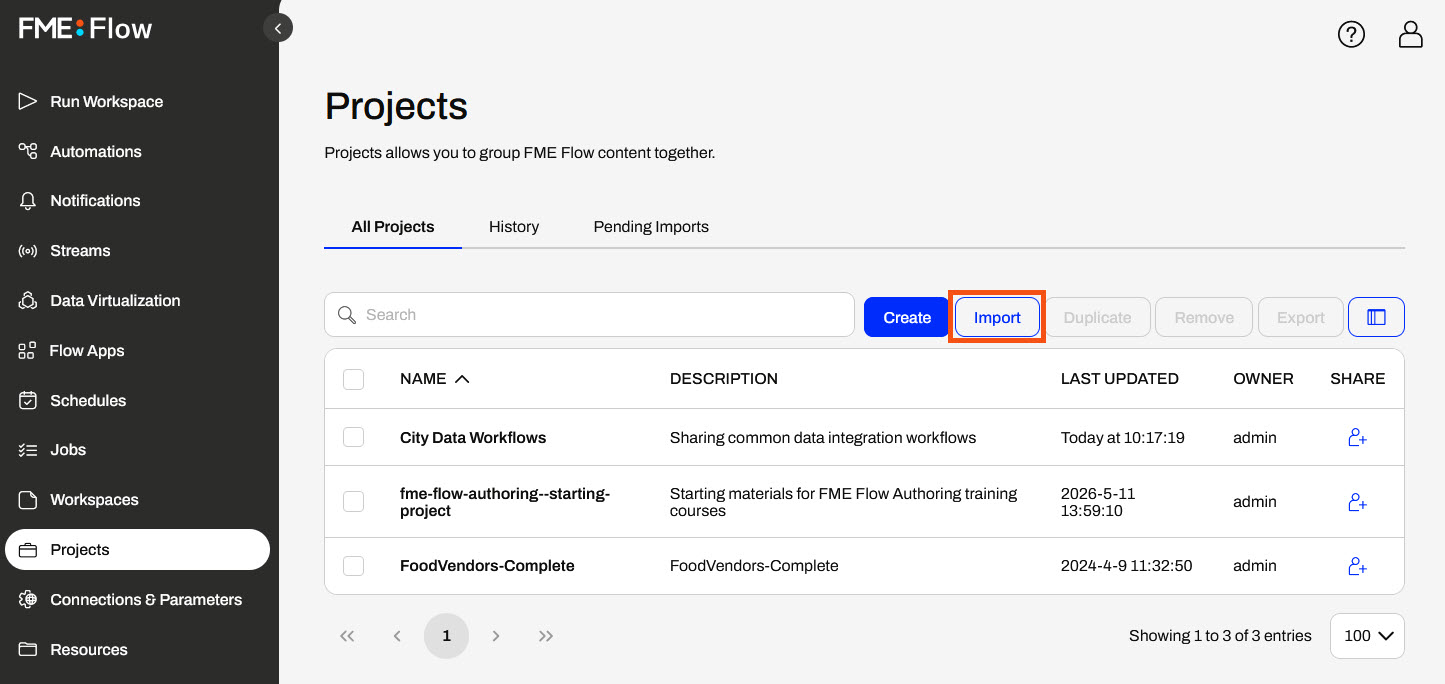
Open Projects on FME Flow and click Import to start importing Sven's project.
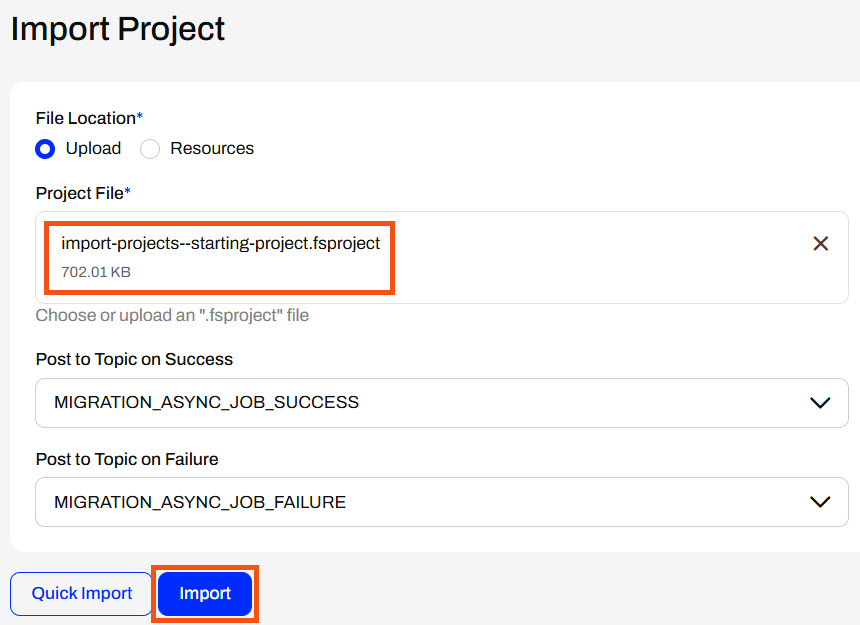
Keep the File Location setting set to Upload, then add Sven's project (C:\FMEData\Workspaces\DeployWorkflowsWithFMEFlow\import-projects--starting-project.fsproject) to the Project File. Do not alter the topic settings and click Import.
The first step of Project Import is to Preview Content. Most of Sven's project items are New Items; however, the DataValidation Workspace App and its dependencies already exist on FME Flow. Deselect the option to overwrite existing items so the existing DataValidation App, workspace, and repository will not import with the project.
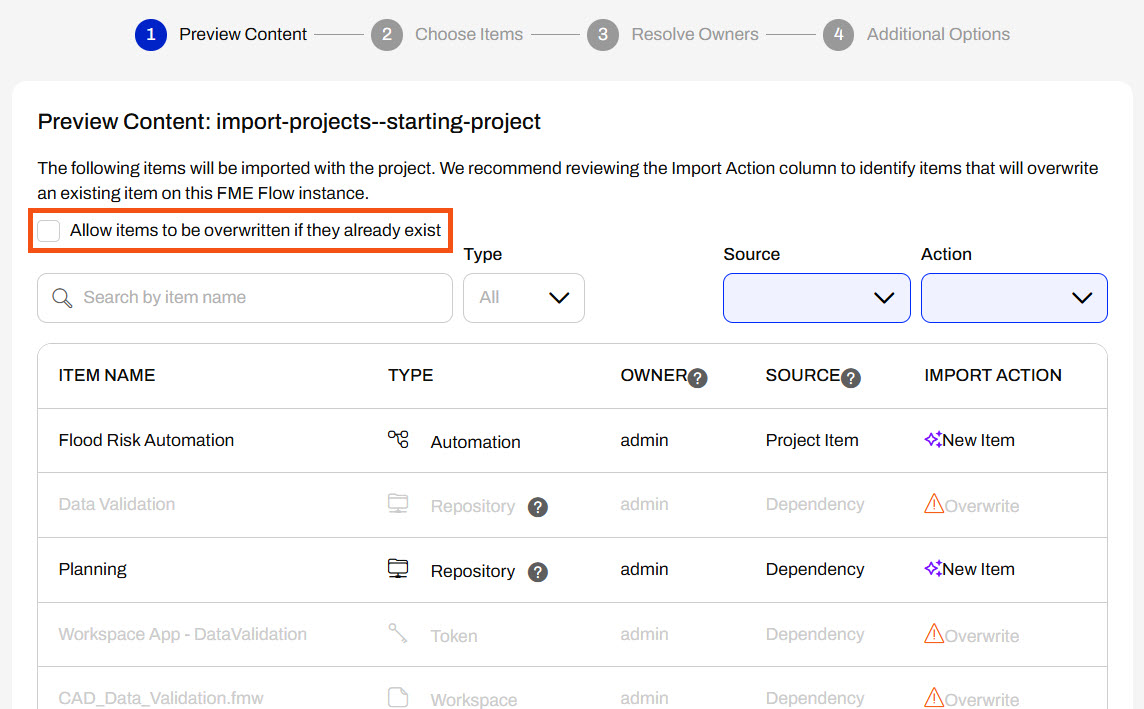
Scroll to the bottom and click Continue to go to the next step.
The following two steps - Choose Items and Resolve Owners - do not require any configurations, so click Continue to proceed to Additional Options. Scroll to the bottom of the page and click Import Project.
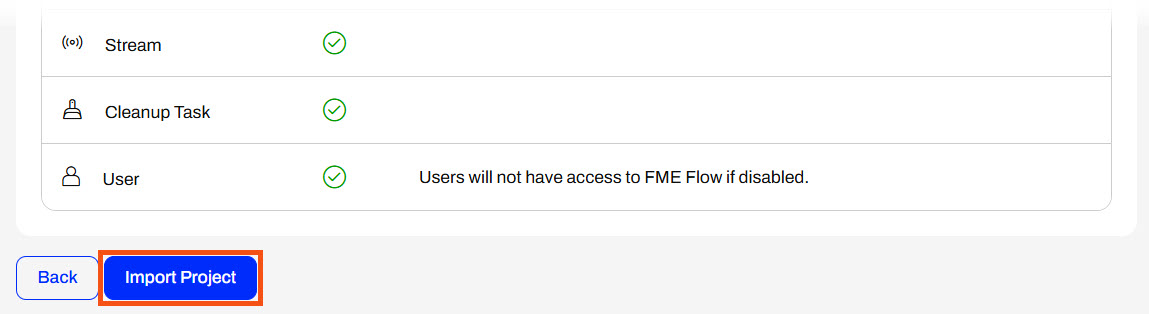
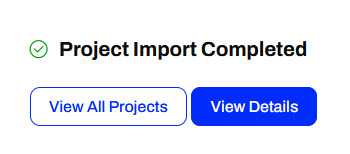
The project immediately begins to import. Once the import completes, FME Flow displays the Project Import status.
2) Test Running an Imported Workspace
Now that you've imported the project, you should test running one of Sven's workspaces to ensure it runs successfully.
Go to the Run Workspace page and configure the FloodRiskProject.fmw workspace in the Planning repository to run.
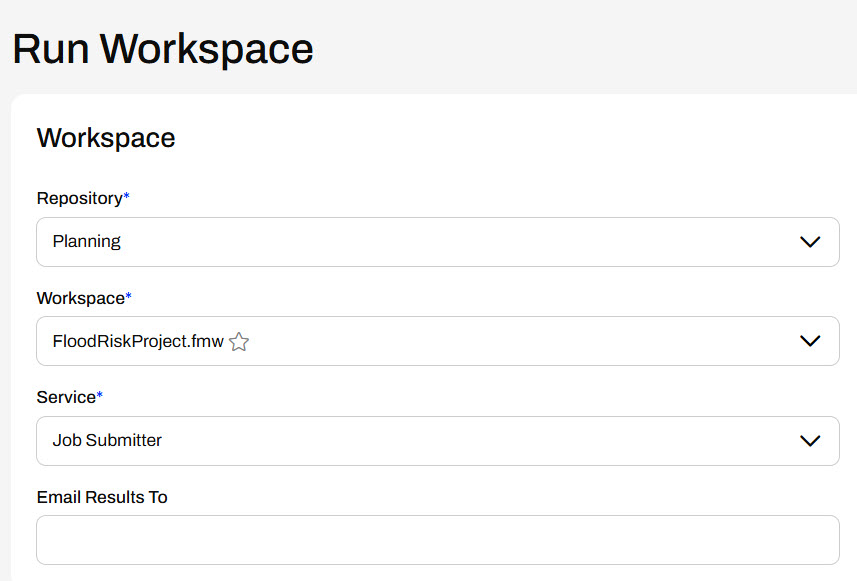
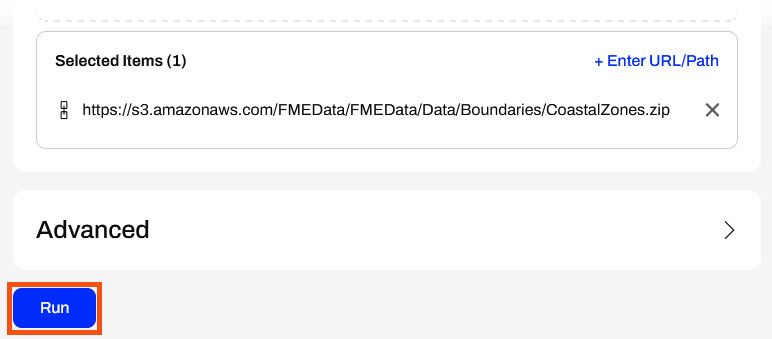
Do not alter any of the User Parameter default values, scroll to the bottom of the page, and click Run.
Sven's FloodRiskProject.fmw workspace runs successfully on FME Flow.
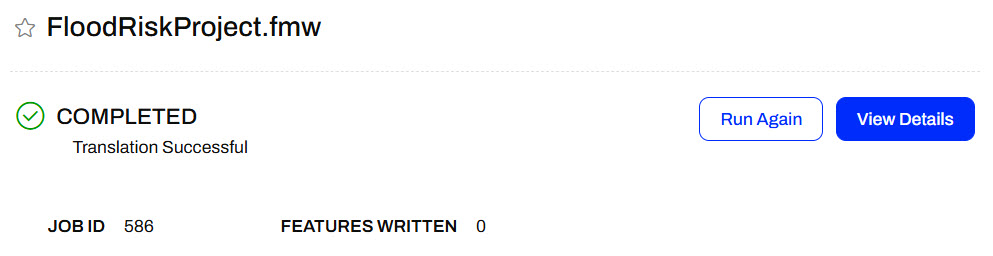
You've successfully imported Sven's project to a new FME Flow environment. Now, Frank and Sven can configure and run the workflows in production.
The last step is Additional Options, where you choose whether to turn off notifications during the import process and whether to disable items you do not want to run or use immediately after import completion. For example, an Automation may trigger immediately and begin running workspaces if you choose to leave the items as enabled.
Whether you select Import or Quick Import, once you click Import Project, FME Flow imports the items and displays the import status.
You should always test your workflows after migrating them between FME Flow instances. After a successful import, you will see the newly added project items among the existing content on your FME Flow.
To import a project that you exported with sensitive data, you must ensure the encryption keys match between the FME Flow instances; otherwise, the project import will fail. For more information on System Encryption and Projects, see our documentation.
Exercise
Sven has been busy creating workflows ready for deployment to the city's production FME Flow. He has developed and exported a project from Planning's development FME Flow and sent it to Frank to import onto the production FME Flow instance.
For this exercise, follow the steps below to import Sven's project to FME Flow.
1) Import Project
Open Projects on FME Flow and click Import to start importing Sven's project.
Keep the File Location setting set to Upload, then add Sven's project (C:\FMEData\Workspaces\DeployWorkflowsWithFMEFlow\import-projects--starting-project.fsproject) to the Project File. Do not alter the topic settings and click Import.
The first step of Project Import is to Preview Content. Most of Sven's project items are New Items; however, the DataValidation Workspace App and its dependencies already exist on FME Flow. Deselect the option to overwrite existing items so the existing DataValidation App, workspace, and repository will not import with the project.
Scroll to the bottom and click Continue to go to the next step.
The following two steps - Choose Items and Resolve Owners - do not require any configurations, so click Continue to proceed to Additional Options. Scroll to the bottom of the page and click Import Project.
The project immediately begins to import. Once the import completes, FME Flow displays the Project Import status.
2) Test Running an Imported Workspace
Now that you've imported the project, you should test running one of Sven's workspaces to ensure it runs successfully.
Go to the Run Workspace page and configure the FloodRiskProject.fmw workspace in the Planning repository to run.
Do not alter any of the User Parameter default values, scroll to the bottom of the page, and click Run.
Sven's FloodRiskProject.fmw workspace runs successfully on FME Flow.
You've successfully imported Sven's project to a new FME Flow environment. Now, Frank and Sven can configure and run the workflows in production.


